 Owncast now supports custom plugins.
 Chat moderation
Using either the Owncast admin, or inline moderation controls within your chat, you can remove individual messages or entire users.
Chat Moderators
Moderators have no access to the admin, and exist to help you keep your chat in order.
In your admin, visit Users to find the user you want to grant Moderator privileges.
Bring up their details and you can add them as a moderator.
By default there are no moderators, so at the very least you might want to make yourself one.
Moderators will be notified when they become one, and have a moderator icon next to their name in chat that everyone can see.
How to moderate
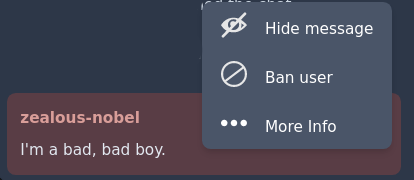
Once you become a moderator you can hover over a chat message and open a menu where you can remove a single message, or ban the user from the chat completely.
Using the "More info" action you can get a short overview of the user such as when they first joined. This information is useful when trolls are trying to impersonate somebody.
Removing chat messages using the Admin
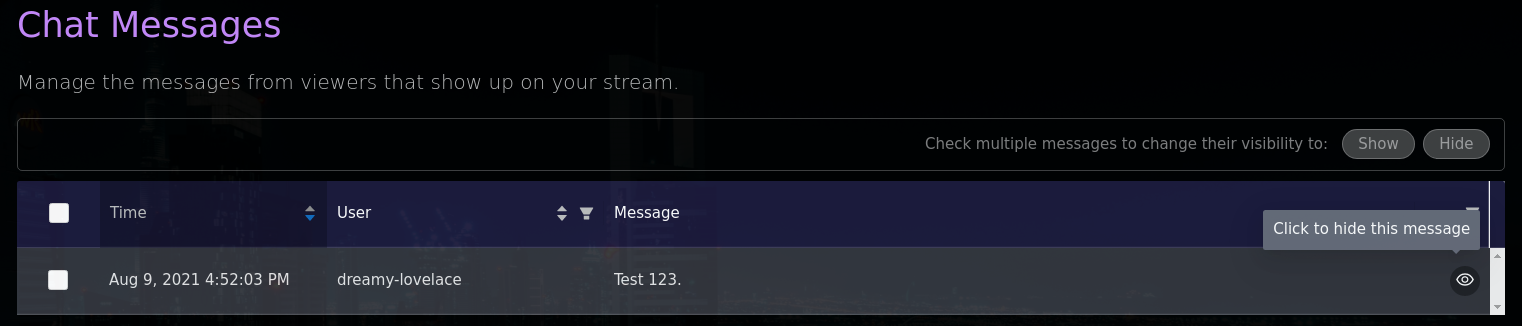
Visit Chat > Messages in your admin to perform chat message moderation tasks.
Single message
You can toggle the visibility of a single message in your chat by clicking the visibility toggle button (that looks like an eyeball) on the far right of each message.
Bulk changing of visibility

Alternately, you can select, via checkboxes, the messages you want to change all at once, and then press the "show" or "hide" buttons.
Banning users from your chat using the Admin
Visit Users in your admin to perform user moderation tasks.
Banning a user will immediately disconnect them from chat and hide the chat interface from their browser. It will also remove all previous messages sent by this user from the chat feed.
You can un-ban a previously banned user, but note that it will not restore these removed messages. You may restore them manually if needed.

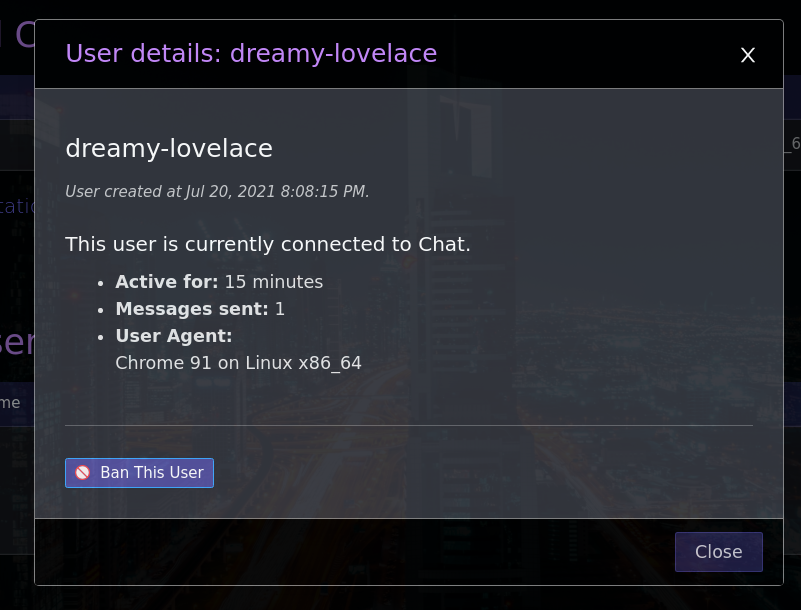
Alternatively, you can click on the user display name and bring up the user info modal and ban them from there.
Banning vs deleting
Banning is reversible, since you can un-ban the user later. The same menu also offers Delete user, which is permanent. It removes the user and all of their data, including their messages, and cannot be undone.
IP Address Blocking
When banning a user Owncast will automatically block their known IP address. While this can deter most trolls, like anything else, it is possible to evade.
- Owncast uses the IP address as provided in the
x-forwarded-forheader if it's provided, meaning it may be possible for somebody to override this value with a fake address. If you're concerned about this, make sure your reverse proxy is configured to explicitly set the correct header value. - VPNs are a thing. By using a VPN it's trivial to evade the IP address ban.
This is all to say: This feature will help keep abuse down, but in no way does it guarantee that it will keep the worst of the worst away. Moderation is still the responsibility of each individual stream.
A list of blocked IPs can be viewed in the Admin Chat Users interface and can be un-banned via the same interface.
Chat settings
Visit Configuration > Chat in your admin to change how chat behaves:
- Chat: turn chat on or off entirely.
- Join Messages: announce in chat when a viewer joins.
- Welcome Message: a system chat message sent to viewers when they first connect. Leave it blank to disable.
- Forbidden usernames: a list of words that are not allowed in chat usernames.
- Default usernames: an optional list of usernames that new visitors get assigned. With fewer than 10 entries, random names are generated instead.
- Established users only: block messages from accounts younger than 15 minutes. Moderators are exempt.
- Chat language filter: reject messages that contain offensive language, using an internal word list.
- Require Authentication: only authenticated users and moderators may send messages.
Rate limiter
Chat has a built-in rate limiter to prevent spam. It allows roughly one message every two thirds of a second. A user who floods faster than that is blocked from sending messages for 10 seconds and is told so. Moderators are never rate limited. You can turn the limiter off with the Spam Protection toggle in the chat settings.
Improve this page
See something missing or incorrect? Edit this page and improve the documentation for everyone.


Related Documents
- Chat pluginsBuild chat bots, moderation tools, and message filters for Owncast plugins using chat handlers and owncast.chat APIs.
- ChatHow to use the Owncast chat features.
- Enable Chat authenticationVerify and keep your chat identity.
- Chat is offline
- Upload Custom emojiAdd your own custom emoji for use in chat.
- Chat plugin commandsDeclare chat commands with aliases, cooldowns, moderator gating, and automatic !help listings.