 Owncast now supports custom plugins.
 Customizing colors and appearance
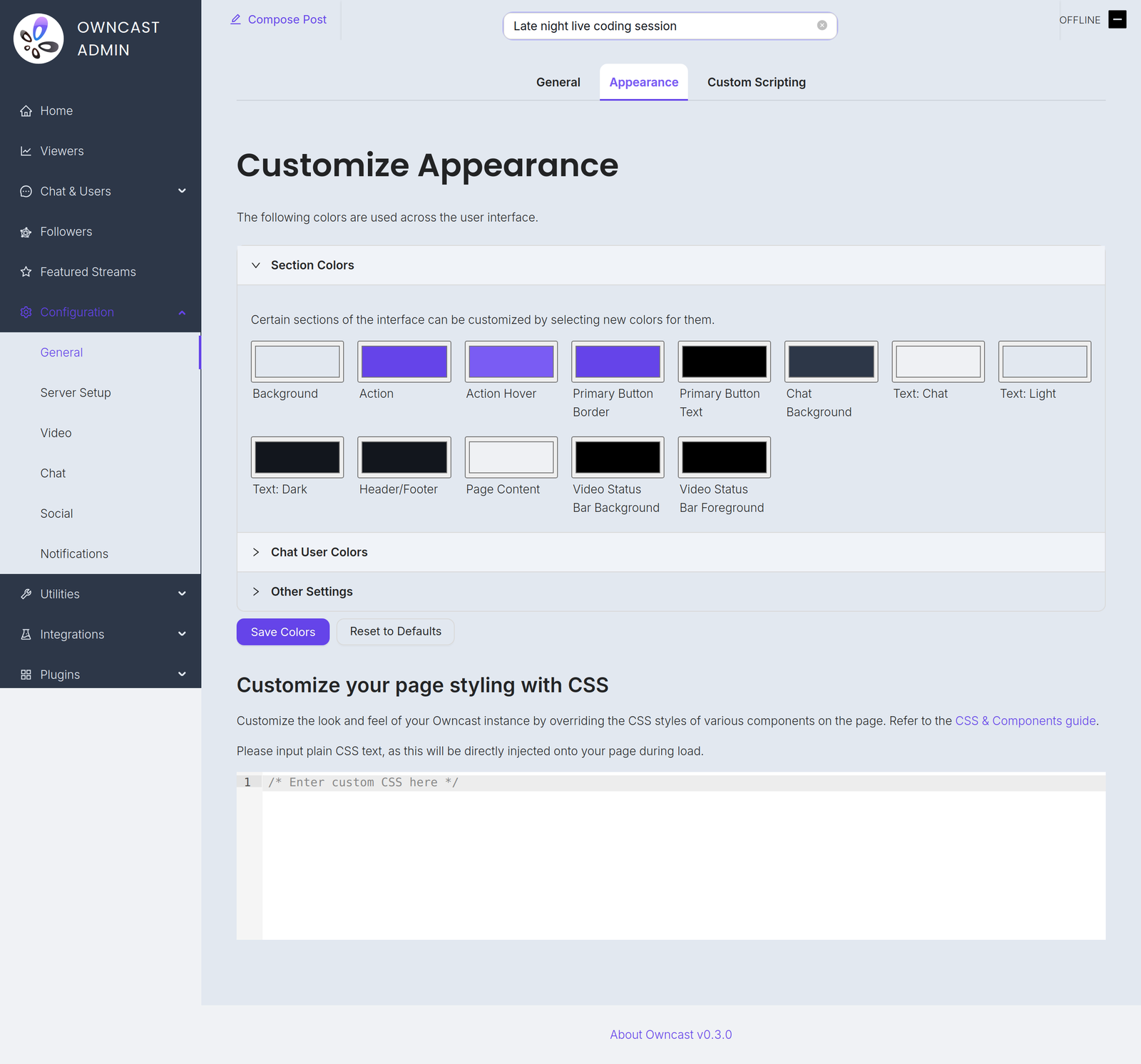
You can customize your Owncast page's colors and appearance from Configuration → General → Appearance in the admin. Start with the section color pickers, which need no code. For finer control you can write your own CSS in the editor, and the Owncast CSS helper below generates a starting point you can paste in.
If you want to go further with custom CSS it helps to be comfortable with CSS selectors and the CSS variable syntax, but you do not need either to get started.
CSS Selectors
| Selector | Description |
|---|---|
header | The page header element |
footer | The page footer element |
#global-header-text | The text in the header |
#offline-banner | The banner that appears when the stream is offline |
#custom-page-content | The custom content of the page |
#notify-button | Button to display the notify modal |
#follow-button | Button to display the follow modal |
#followers-collection | The collection of followers |
#modal-container | The container for the modals |
#chat-container | The container for the chat |
.chat-message_user | A user-sent chat message |
.chat-message_system | A system-sent chat message |
.chat-message_social | A social message from the Fediverse |
.followers-follower | A single Follower in the followers collection |
CSS Variables
You can override the values assigned to CSS variables manually by setting them in the CSS editor in the admin. You can find a list of variable names you can override.
For example, if you'd like to make all action items (links, buttons) red, button borders green, and change the body font to a serif font, you can set the following CSS variables as follows:
:root {
  --theme-color-action: red;
  --theme-color-components-primary-button-border: green;
  --theme-text-body-font-family: serif;
}
Additional selectors and variables
While, using CSS, you can target any element on the page, if there are specific elements you find yourself having difficulty customizing, please open an issue on the Owncast GitHub repository so we can consider adding additional selectors or CSS variables to make customization easier. We will also likely add more customization options directly within Owncast's appearance page over time for common use cases. If you find yourself wanting to customize something specific, contributions are welcome!
Appearance and theme plugins
Theme plugins require Owncast 0.3.0 or later.
Plugins can style the viewer page too. A theme plugin is the supported way to install and share a packaged look. Your settings on this page and a plugin's styles combine into the final result.
Your choices win. The colors you pick here and the CSS you write in the editor are applied on top of any plugin's styles, so where both touch the same color, yours takes effect. A theme plugin acts as a baseline: it changes the colors you have not set yourself, and any color you set explicitly overrides it.
When a plugin is styling your page, this page tells you:
- A notice at the top names the plugin or plugins currently applying styles.
- Each color a plugin also sets is flagged with an
also set by <plugin>note next to its picker.
Two levers control the outcome:
- To let a theme plugin fully control the look, clear your own colors with Reset to Defaults. With nothing set here, the plugin's theme shows through completely.
- To stop a plugin's styling entirely, disable it on the Plugins page in the admin.
Owncast CSS helper
To assist in customizing your Owncast colors via CSS variables and customizing specific elements, use the CSS helper below. This is meant to give you a head start in writing your own CSS, not a complete solution. Select colors using the color pickers, edit the CSS directly as needed, then copy and paste the result into your Owncast admin under Configuration → General → Appearance.

You can copy and paste your custom CSS and share it with other Owncast users as themes!
Owncast Components
Select colors to customize your Owncast instance. The CSS will be generated automatically.
--theme-color-action--theme-color-action-hover--theme-color-background-main--theme-color-background-header--theme-color-components-primary-button-background--theme-color-components-primary-button-text--theme-color-components-primary-button-border--theme-color-components-chat-background--theme-color-components-chat-text--theme-color-components-chat-input-background--theme-color-palette-0--theme-color-palette-1--theme-color-palette-2headerThe main header element
footerThe main footer element
#global-header-text#offline-bannerThe banner that appears when the stream is offline
#custom-page-contentThe custom content of the page
#notify-buttonButton to display the notify modal
#follow-buttonButton to display the follow modal
#followers-collection#modal-containerThe container for the modals
#chat-container.chat-message_userA user-sent chat message
.chat-message_systemA system-sent chat message
.chat-message_socialA social message from the Fediverse
.followers-followerA single Follower in the followers collection
Generated CSS
Improve this page
See something missing or incorrect? Edit this page and improve the documentation for everyone.

Related Documents
- Customize Your Owncast SiteCustomize your Owncast web page by adding additional content and links.
- ConfigurationConfiguration is generally done through the Owncast administration page located on your server under `/admin`, however, there are a number of runtime flags you can set when starting Owncast to modify its behavior.
- Run Owncast as a Background ServiceSetup owncast to run as a system service, automatically starting when your server does.
- Configuration via Runtime FlagsConfiguration is generally done through the Owncast administration page located on your server under `/admin`, however, there are a number of runtime flags you can set when starting Owncast to modify its behavior.
- PluginsAn overview of Owncast plugins, what they can do for your stream, and how to install one from the admin.
- Add custom JavaScriptRun custom JavaScript on your Owncast web page.