 Owncast now supports custom plugins.
 Live stream notifications
Some streams benefit from announcing to their audience when they go live.
This is not an endorsement of any particular service, but it may help some streamers integrate into their existing communities.
If you'd like to expand on this and send automated notifications to other destinations, create a custom webhook.
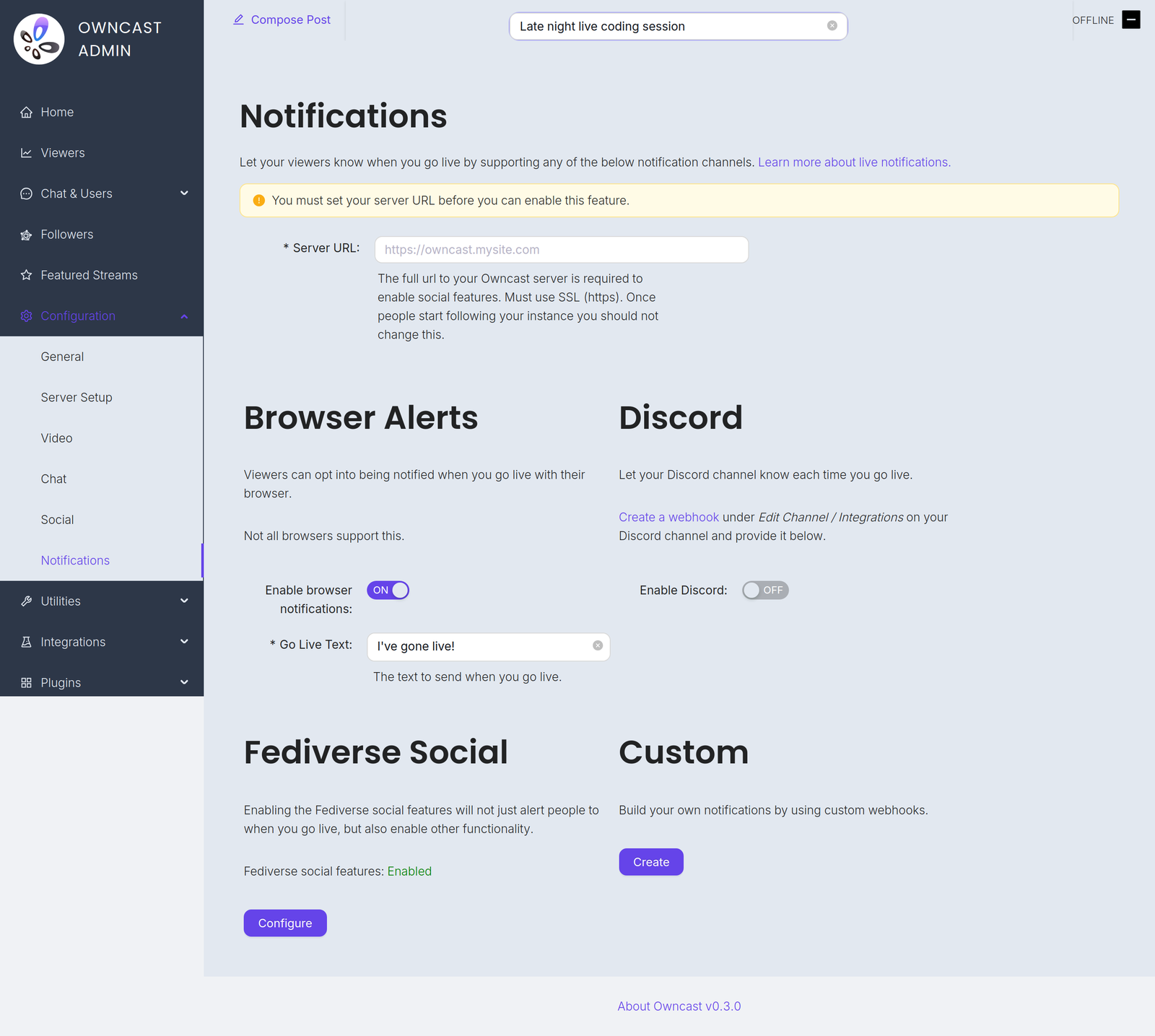
You'll find these channels under Configuration → Notifications in the admin.
Before you can enable any of them you must set your Server URL under Configuration → General. Until you do, every notification channel on this page is disabled and the admin shows a warning with a field to set it.
Go-live notifications are not instant. Owncast waits 2 minutes after your stream starts before sending them, which avoids notifying people about accidental or very short streams. And if a notification already went out in the previous 10 minutes, for example because your stream briefly dropped and reconnected, a new one is not sent.
- Browser notifications
- Browser extension
- Fediverse
- Discord
- Custom
Using browser push notifications your viewers can choose to be notified each time you go live.
To offer this, turn on Enable browser notifications and set the required Go Live Text, the message sent when you go live, up to 200 characters.
Browser push notifications are not supported for local servers. Your instance must be reachable at a public HTTPS address.
Not all browsers support this feature, and browsers that do may handle it differently. Brave, for example, requires you to choose the duration the notifications are valid. They will likely want to select "Forever" to keep the notification active.
Enabling browser notifications on iOS
You can request to be notified when a stream goes live on iOS by following these steps:
- Open Safari and navigate to your Owncast instance.
- Tap the share button in Safari.
- Scroll down and tap "Add to Home Screen".
- Tap "Add".
- Give the link a name and tap the new icon on your home screen.
- Press the "Notify" button and enable notifications.
- Tap "Allow" when prompted.
Another suggested way to receive browser notifications from any number of streams is by using the Owncast Browser Extension by craftamap. It's available for Chrome and Firefox.
The Fediverse social features have built in support to notify your followers when you go live. Visit the documentation for more information.
You can notify a Discord channel when your stream goes live.
- Visit Edit Channel / Integrations on your Discord channel and create a webhook. The Discord documentation has complete instructions.
- In the Owncast admin, turn on Enable Discord.
- Paste the webhook into the Webhook URL field.
- Set the Go Live Text, the message posted when you go live, up to 300 characters.
You can create your own custom notifications using webhooks. This allows you to send notifications to any service by writing your own integration.
Improve this page
See something missing or incorrect? Edit this page and improve the documentation for everyone.

Related Documents
- WebhooksLearn how to set up and use webhooks to get notified about events on your Owncast server.
- List Your Stream in the Owncast DirectoryThe Owncast Directory is a centralized list of streams for people to discover.
- The FediverseAllow people to follow your server, know when you go live, share and interact with your stream.
- Server SetupReference for the Server Setup page in the Owncast admin, covering the admin password, stream keys, ports, FFmpeg path, and network settings.
- Owncast Plugin APIsEvery owncast.* method your plugin can call from inside a handler, what it returns, and what permission it needs.
- PluginsAn overview of Owncast plugins, what they can do for your stream, and how to install one from the admin.