 Owncast now supports custom plugins.
 Plugins
Plugins let you add new behavior to your Owncast server without writing code yourself. They're small add-ons that run inside Owncast and can react to chat, viewers, stream events, and the fediverse. A plugin is delivered as a single .ocpkg file you upload from the admin.
Plugins are brand-new functionality, introduced in Owncast v0.3.0, and there are few plugins available today. If you hit a bug or have a suggestion, please open an issue or chat live with the community. If you have an idea for a plugin you'd like to see, share it with the community. You are encouraged to build your own plugins to share chat bots, stream overlays, custom integrations, themes and more. The plugin SDK has everything you need to get started.
What can a plugin do?
A plugin can:
- Add a chat bot that replies to commands, posts reminders, or removes spam.
- Add a stream overlay you can drop into OBS as a browser source (live chat overlays, viewer counters, alerts, and so on).
- Connect Owncast to other services like Discord, the fediverse, or your own webhooks, so going live or a new follower triggers something elsewhere.
- Add custom UI buttons that link to your store, donation page, schedule, or anything else.
The plugin author decides what their plugin does. You decide whether to install it.
How a plugin asks for permission
Before a plugin can do anything sensitive, it has to declare it. When you install a plugin, the admin shows you a Permissions list, in plain language, of every capability the plugin will use: things like "Post chat messages as the plugin's own bot identity" or "Make outbound HTTP requests to other services". You review that list and decide whether to enable the plugin.
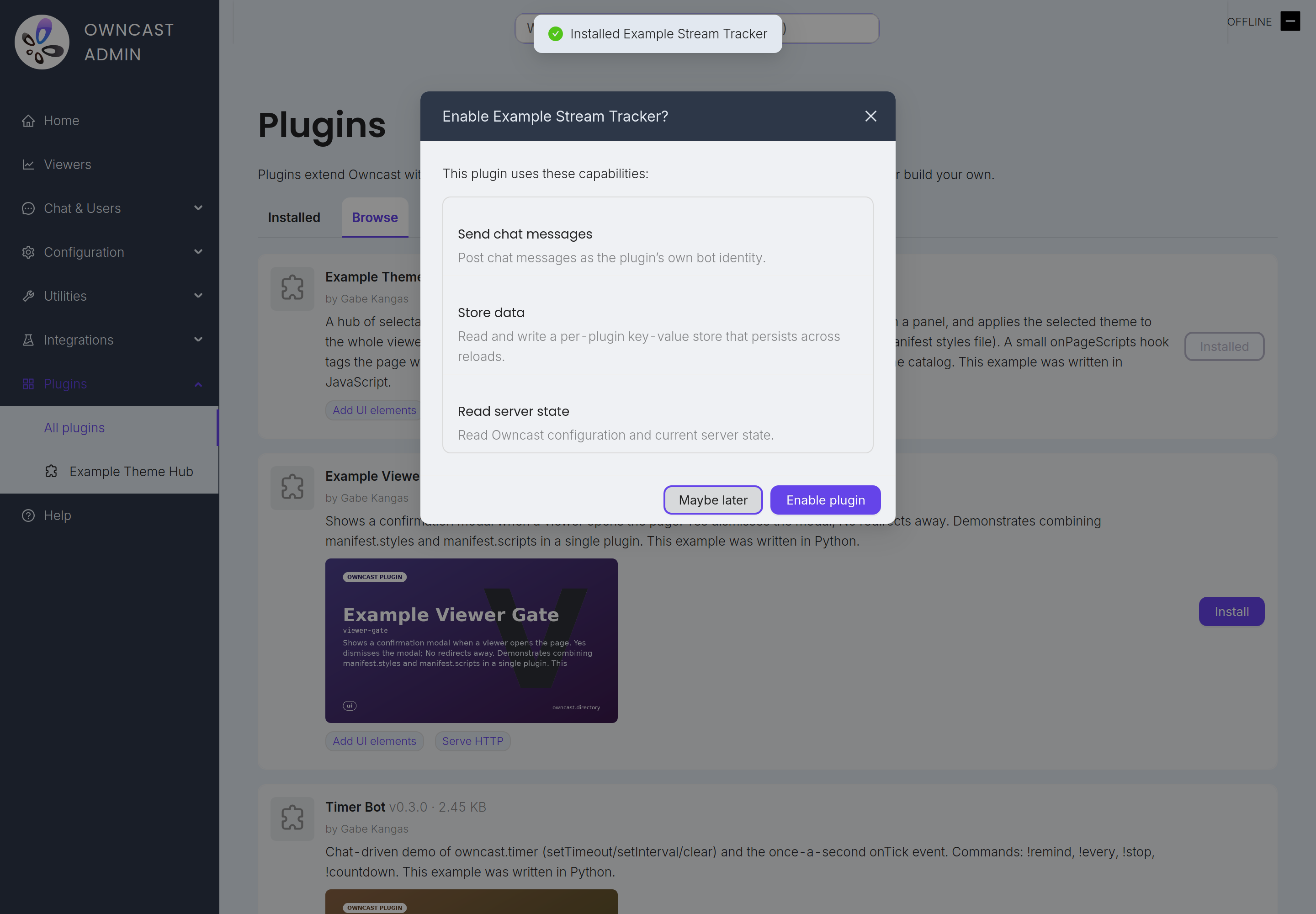
If the plugin is later updated and asks for more access than before, Owncast pauses the plugin and shows a "needs re-approval" badge. The plugin won't run again until you review the new permissions and approve them. Your existing approvals never expand silently.
Installing a plugin
Open Plugins in the admin sidebar. There are two ways to add one.
Browse the catalog. The Browse tab lists plugins published to the public directory. Each card shows what the plugin does, who built it, and the permissions it asks for. Click Install on any of them and Owncast downloads it for you.
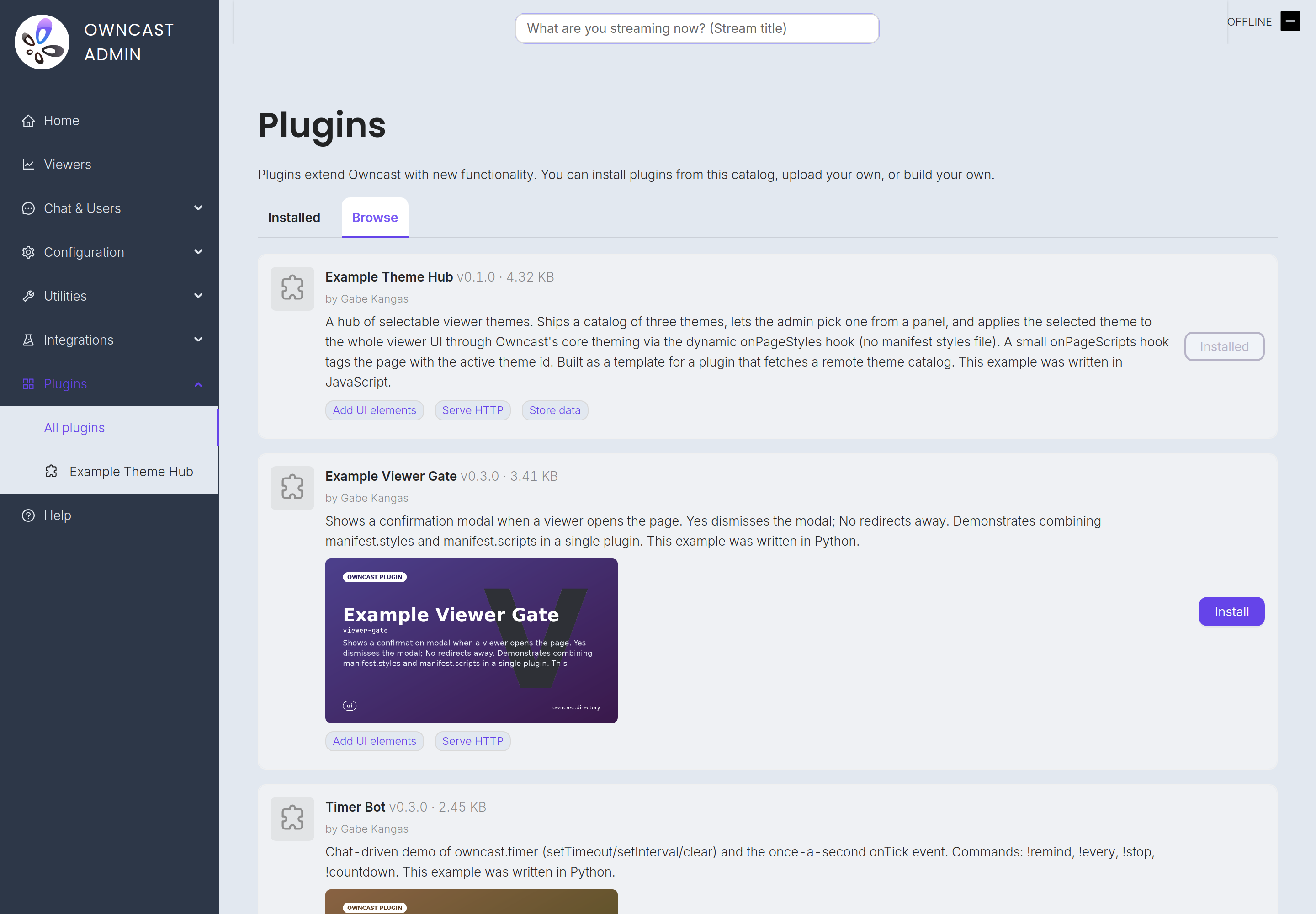
Upload your own. On the Installed tab, click Upload plugin and pick an .ocpkg file. Use this for a plugin you built yourself or got from somewhere other than the catalog. Every plugin has a unique identifier, so an upload that collides with a plugin you already have installed is rejected. Uninstall the old copy first if you are replacing it by hand.
Either way, Owncast shows you the plugin's permission list and asks whether to enable it. Toggle Enabled to load it. The plugin survives restarts, so you do not need to enable it again after a reboot.
Disabling and removing
- Disable keeps the plugin installed but stops it from running. Toggle Enabled back on to load it again.
- Uninstall removes the plugin entirely. From the Plugins page click the trash icon on its row and confirm. The plugin's file is removed from the server and it stops doing anything immediately.
Chat commands and !help
Many plugins add chat commands. These are short messages that start with a prefix, usually !, that tell a plugin to do something. The Timer Bot example below adds !remind, !countdown, and a few others. A viewer types the command and the plugin responds in chat.
You do not have to memorize what each plugin offers. Owncast has a built-in !help command. Anyone in chat can type !help (or !commands) and Owncast replies with a single message listing every command from supported plugins, grouped by plugin, each with a short description.
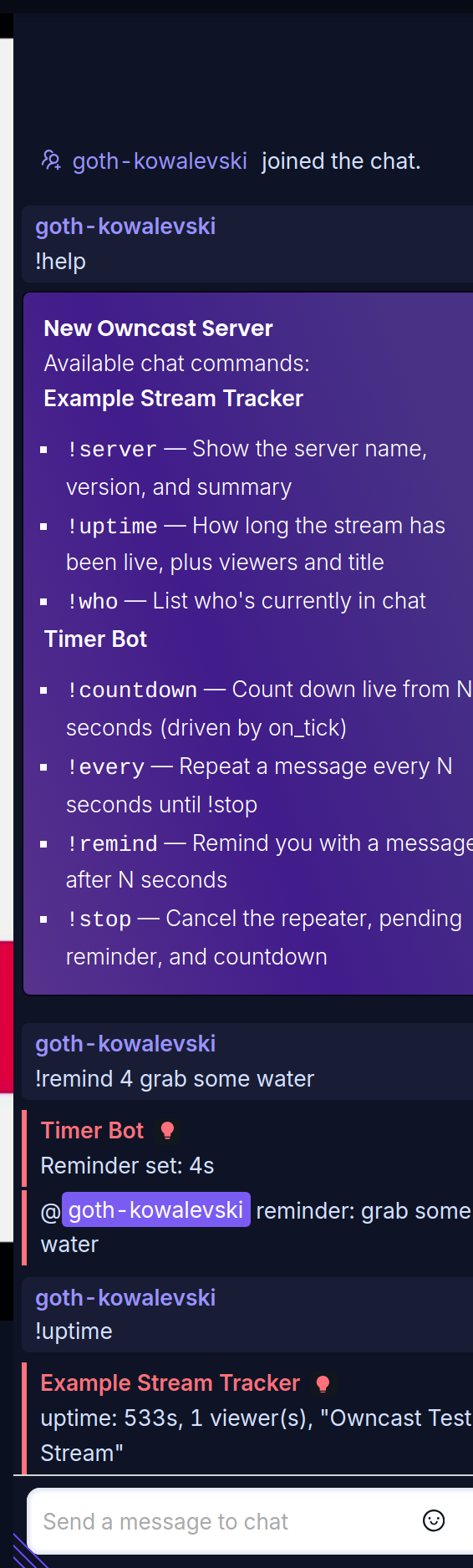
A few things worth knowing about !help:
- Automatically generated. Install a plugin that adds commands and they appear in
!helpright away. Disable it and they disappear. - Plugins advertise their own commands. A plugin declares its commands and their descriptions, so there is nothing for you to configure. The descriptions you see in
!helpcome straight from the plugin. - Moderator commands stay hidden. Commands a plugin marks as moderator-only only show up in
!helpfor your moderators.
Hardware and resource usage
Plugins are standalone tiny programs that run inside Owncast. If you enable plugins they will take up some additional CPU and memory for the runtimes and plugin themselves. Generally the first plugin will see the most RAM usage jump, and then small increases from there. If you notice your server slowing down after enabling a plugin, try disabling it to see if performance improves.
Where do plugins come from?
Plugins are built and shared by their authors.
When you install a third-party plugin, the Permissions list is your trust boundary. If a plugin asks for more access than you'd expect for what it claims to do, that's worth a second look before you enable it.
Want to build one?
The full developer documentation lives at our plugin development docs.
Improve this page
See something missing or incorrect? Edit this page and improve the documentation for everyone.

Related Documents
- Extend Owncast with pluginsWrite plugins that run sandboxed inside Owncast to react to chat, post to the fediverse, serve HTTP endpoints, and add UI.
- Chat pluginsBuild chat bots, moderation tools, and message filters for Owncast plugins using chat handlers and owncast.chat APIs.
- Configuration via PluginsLet admins configure your plugin with typed settings. Owncast renders the form, you read the values at runtime with owncast.config.get.
- Contributing web UI with PluginsAdd admin pages to the Owncast admin UI and action buttons to the viewer chrome.
- Testing pluginsDrive your built plugin through the real Owncast runtime with mocked side effects. Scenario tests, assertions, fixtures, HTTP auth.
- Packaging & publishing pluginsBundle your plugin into a .ocpkg, install it on a server, and list it in the public plugin directory.