 Owncast now supports custom plugins.
 Configure Your Stream Key and First Stream
Any piece of software you're already using for live streaming is likely compatible with Owncast. Visit our broadcasting software page to see some specific pieces of software and how they're configured.
The admin interface can be found by navigating to /admin on your Owncast server (e.g., https://owncast.example.com/admin).
Configuring your broadcasting software to stream to your Owncast server requires you to use the /live endpoint along with providing the stream key. (e.g., rtmp://owncast.example.com/live with stream key abc123). If your software does not allow specifying the stream key separately, you may need to append it to the URL as rtmp://owncast.example.com/live/abc123.
Default credentials
| Default | Value |
|---|---|
| Admin username | admin |
| Admin password | abc123 |
| Stream key | abc123 |
These are the default credentials for logging into the Owncast admin interface and streaming to your Owncast server. It is highly recommended that you change these values immediately after your first login to ensure the security of your server.
Next steps
- Point your broadcasting software at your new server using
rtmp://yourserver/livewith your stream key. If your software doesn't have a way to specify a stream key use the urlrtmp://yourserver/live/streamkeyand use your stream key instead. - Access your server in your web browser by visiting
http://yourserver:8080. - You can visit the Admin dashboard at
http://yourserver:8080/adminwhere you can check visitor and server stats, change your stream key, personalize the content displayed on your page, and more. To log in, use the usernameadminand your admin password (abc123by default).
Note: Your stream key and admin password both default to abc123, but they are separate settings. The stream key is only used by your broadcasting software to publish video. It is not your admin password.
Stream Key
To begin streaming you need two things: your Owncast server's RTMP URL (rtmp://yourserver/live) and a stream key. The stream key and the admin password both default to abc123, but they are separate settings. The stream key lets your broadcasting software publish video. The admin password logs you into the admin dashboard. Change both as soon as you can.
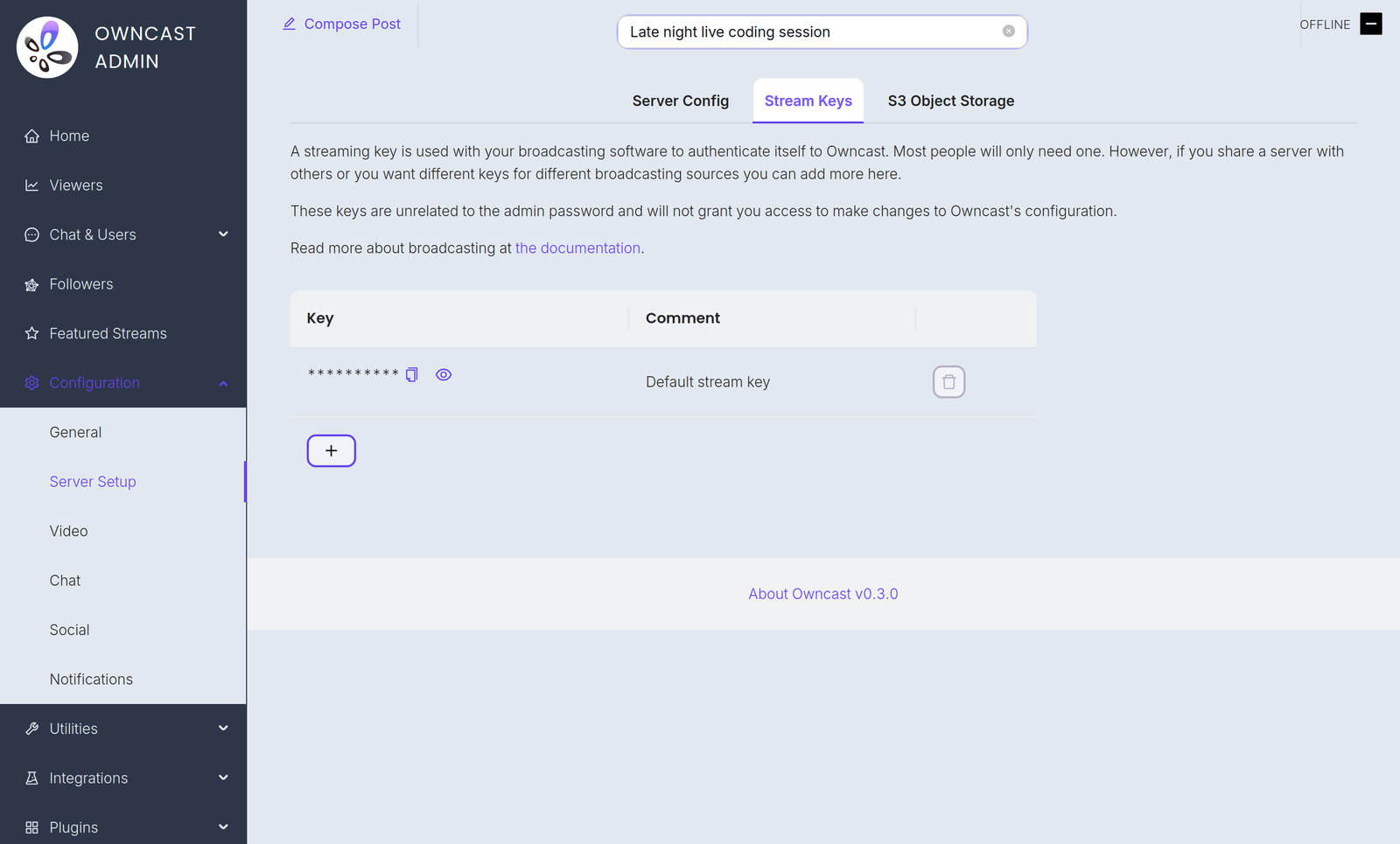
The admin password and stream keys are managed independently, so you can add as many stream keys as you like. Most people only need one, but multiple keys are useful in some setups, such as giving a co-host their own key you can revoke later.
You manage stream keys in the admin under Configuration > Server Setup, which has Server Config and Stream Keys tabs. New keys are auto-generated for you, and each key in the list can be revealed and copied. See the server setup guide for the full page.
If you start Owncast with the --streamkey flag, the Stream Keys tab is hidden and the value from the command line is used for that session.
What to configure next
Some common items many people update after installing Owncast are:
- Your site name, logo, description and external links that are displayed on the web site.
- Your stream key, which your broadcasting software uses to publish video, and your admin password, which you use to log into the admin dashboard.
- Enable your stream to show up in the Owncast Directory.
Read more about what you can configure and how.
Improve this page
See something missing or incorrect? Edit this page and improve the documentation for everyone.

Related Documents
- Stream performanceIt's important to know if your Owncast stream is performing well. There are a few tools within the admin to assist with this.
- Server SetupReference for the Server Setup page in the Owncast admin, covering the admin password, stream keys, ports, FFmpeg path, and network settings.
- InstallationStart streaming to your own server in seconds.
- Live stream notificationsSend notifications when your stream goes live.
- Back Up Your Stream Data and ConfigurationOwncast makes periodic backups of your data that can be restored.
- Owncast Quick InstallerStart streaming to your own server in seconds.