 Owncast now supports custom plugins.
 Contributing web UI with Plugins
Plugins can add their own UI to Owncast in two places: tabs inside the admin (for streamer-facing settings) and action buttons under the stream (for viewer-facing actions). Both are declared in your manifest and managed by the host. You ship the content, Owncast slots it into the right chrome.
Manifest declarations on this page are plain JSON, identical whatever language you write in. Dynamic-content handlers and runtime calls are shown for both SDKs. See JavaScript or Python for install and setup.
Admin pages

For flat, typed settings (strings, numbers, switches), declare a manifest config block and let Owncast render the form for you. See Configuration. Build a custom admin page when you need a UI the auto-form can't express.
Plugins can register pages that appear inside the Owncast admin UI under Plugins. Declare them as an object keyed by plugin-relative path glob:
{
  "permissions": ["http.serve"],
  "admin": {
    "pages": {
      "/admin": { "title": "Settings", "icon": "gear" }
    }
  }
}
Each entry has:
| Part | Notes |
|---|---|
| object key | Required path glob under /plugins/<your-slug>/. Examples: "/admin", "/admin/*", "/admin/api/*". |
title | Required tab label inside the plugin's admin view. |
icon | Optional short semantic name. Supported: gear, wrench, user, users, lock, info, apps, docs, bell (aliases like settings and notifications also work). |
The host derives the page path from the object key. Do not add a path member to the value. The host rejects arrays and page values containing the legacy path member.
How they're rendered
Owncast's admin renders each declared page as a tab inside /admin/plugins/configure?id=<your-slug>. The tab body is an <iframe> pointed at the path from the object key under /plugins/<your-slug>/. Each plugin gets a bookmarkable URL and a sidebar entry under Plugins in the admin navigation.
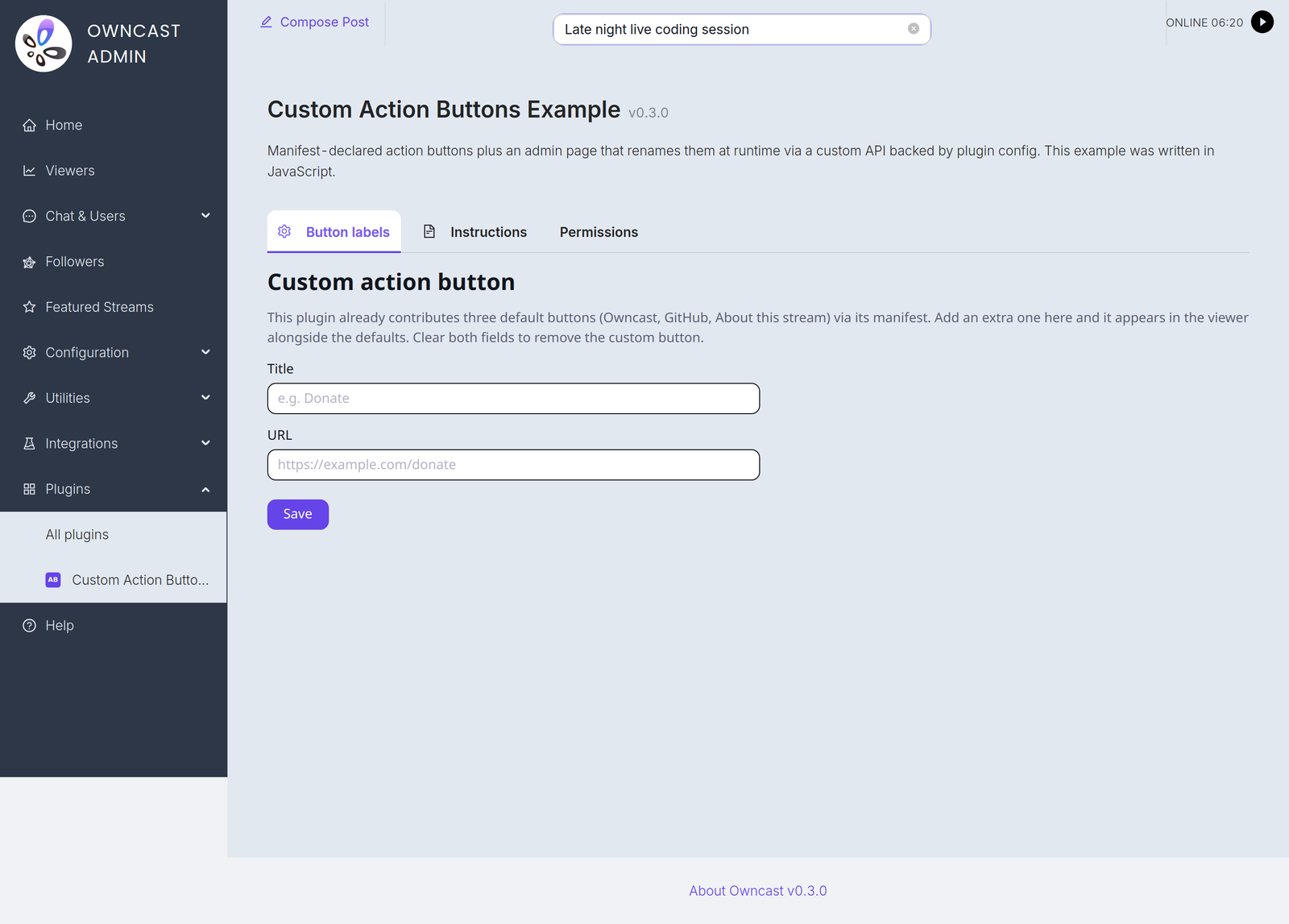
The host auto-injects the baseline stylesheet into HTML responses on admin paths, so plain <input> and <button> controls look native to Owncast's admin without you needing to ship CSS. See Styling plugin UI for what you get for free and the helper classes available. Plugins that prefer their own styling can layer on top.
Sandbox
The page runs in a sandboxed <iframe>. Your scripts run, forms submit, and same-origin fetch to your own /plugins/<your-slug>/ endpoints works. Pages may also open popups, trigger file downloads (e.g. a blob or data-URL <a download> you click from script), and use confirm() / alert() / prompt() dialogs. The sandbox is the only constraint you'll usually notice. If a browser feature seems silently blocked, the iframe sandbox is the first thing to check.
Auth gating
Requests to manifest-declared admin paths are auth-gated by the host. Unauthenticated requests get a 401 before your plugin code runs. You don't have to check the request's authentication for these paths.
Static files and dynamic endpoints under matched paths are both auth-gated. The same gating applies to your public/admin/index.html and to POST /admin/api/save-settings.
Use multiple globs when you have both a UI page and a JSON API:
{
  "admin": {
    "pages": {
      "/admin": { "title": "Settings" },
      "/admin/*": { "title": "Settings" }
    }
  }
}
The admin UI deduplicates tabs by the resolved iframe URL, not by title. /admin and /admin/* both resolve to /admin/, so this pair produces one visible tab that gates the whole subtree. A pair like /admin and /admin/api/* resolves to two different URLs and produces two tabs. JSON object order is not significant. Owncast processes and displays pages in lexicographic path order.
Author flow
- Put admin HTML, CSS, and JS in
public/admin/index.html(and friends). - Expose admin APIs via your request handler at
/admin/api/...(see Serving HTTP). - Declare the relevant path keys in
manifest.admin.pages. - Visit
/admin/plugins/configure?id=<your-slug>in the admin UI. Owncast uses your existing admin login to gate the page. No extra prompt.
Action buttons
Owncast surfaces a row of action buttons in its viewer UI. Clickable entries that either open a URL (in a modal or new tab) or render raw HTML. Plugins can contribute their own.

Manifest-declared buttons
{
  "permissions": ["ui.modify", "http.serve"],
  "actions": [
    {
      "title": "Chat Overlay",
      "description": "Open the live chat overlay",
      "url": "/",
      "icon": "/star.png",
      "color": "#3b82f6"
    },
    {
      "title": "Issue tracker",
      "url": "https://github.com/example/my-plugin/issues",
      "openExternally": true
    },
    {
      "title": "About this stream",
      "html": "<p>Live every weekday at 8pm UTC.</p>"
    }
  ]
}
While your plugin is enabled, the host merges its action entries into the list Owncast already shows under the stream. When disabled, they disappear.
Field reference
| Field | Notes |
|---|---|
title | Required. The button label. |
url | Either an absolute https://... URL or a path. Mutually exclusive with html. |
html | Raw HTML rendered in an inline modal. Mutually exclusive with url. |
icon | Optional image URL shown on the button. Same path rules as url. |
color | Optional hex color for the button background. |
description | Optional. Shown in the modal that opens for URL-based actions. |
openExternally | If true, the URL opens in a new tab instead of an inline modal. |
Path rules
Two simple rules cover everything:
- Relative paths auto-prefix to your plugin's namespace.
"/"becomes/plugins/my-plugin/."/star.png"becomes/plugins/my-plugin/star.png. This saves you from hard-coding your plugin name. Applies to bothurlandicon. - Absolute
https://...URLs pass through unchanged. Use these for external links and CDN-hosted icons.
The host enforces:
ui.modifypermission is required. Manifests withactionsbut noui.modifyare rejected at load.- Exactly one of
urlorhtmlper entry. - URLs and icons that resolve into your namespace require
http.serve. You're the one serving them. - URLs and icons pointing at another plugin's namespace are rejected. Catches typos and prevents one plugin from advertising another's UI.
Runtime additions
A plugin can append more action buttons at runtime, without a reload, by calling owncast.actions.add(...) with a single action or an array of them. Each runtime entry goes through the same validation as manifest.actions, and is persisted in the plugin's config, so additions survive a reload. owncast.actions.clear() drops every runtime addition. Manifest-declared actions remain.
- JavaScript
- Python
const { definePlugin, owncast } = require('@owncast/plugin-sdk');

module.exports = definePlugin({
  onStreamStarted() {
    owncast.actions.add({
      title: 'Donate',
      url: 'https://example.com/donate',
      openExternally: true,
    });
    // or add several at once: owncast.actions.add([ { ... }, { ... } ])
  },
});
from owncast_plugin import plugin, owncast

@plugin.on_stream_started
def add_button(info):
    owncast.actions.add({
        "title": "Donate",
        "url": "https://example.com/donate",
        "openExternally": True,
    })
    # or add several at once: owncast.actions.add([ { ... }, { ... } ])
A common pattern is an admin page that lets the streamer add custom buttons (label + URL) on top of the plugin's defaults. The action-buttons example in the SDK ships a working version of this.
Styling plugin UI
Owncast injects a baseline stylesheet into every plugin surface that renders in an iframe: your admin pages and your viewer-page tabs. It's built from Owncast's own design tokens, so plain semantic HTML adopts the native look with no CSS of your own.
- Headings, paragraphs, and links pick up the theme fonts and colors.
<input>,<textarea>,<select>, and<button>render like the native controls. A<button>gets the primary style. Addclass="secondary"for the outline variant.<table>,<fieldset>, and<code>/<pre>get sensible native styling.
Your content sits flush on the page. The iframe background is transparent so the host's panel shows through, the same way the built-in About and Followers tabs render. You don't get, and shouldn't add, an opaque page background or a wrapping box around everything. That flush rendering is what makes a plugin tab read as part of Owncast rather than an embedded frame.

The baseline styles the iframe-rendered surfaces: admin pages and viewer-page tabs. Content you inject straight into the viewer page (extraPageContent, scripts) renders in the real page DOM and inherits Owncast's actual styles instead.
Helper classes
For native building blocks beyond plain elements, the baseline ships a few opt-in classes. They reference the same theme tokens as the rest of Owncast, so they restyle automatically when an admin customizes the theme.
| Class | What it does |
|---|---|
card | A native card surface, the same look as the followers and featured-streams cards. A plain <section> / <article> stays flush, so opt in with class="card" when you want the boxed surface. |
card interactive | Add interactive to a clickable card for the native hover lift. |
card-grid | A responsive grid that fills as many ~260px columns as fit and collapses to one column on a narrow frame. Drop card children straight in. |
tag | A pill tag or badge, matching the tags on the native stream cards. |
stack | A vertical flex column with a consistent gap. |
row | A horizontal flex row that wraps, with a consistent gap. |
muted | De-emphasized text, for captions and secondary detail. |
<div class="card-grid">
  <article class="card interactive">
    <h3>Album A</h3>
    <p class="muted">Artist A</p>
    <div class="row">
      <span class="tag">jazz</span>
      <span class="tag">2024</span>
    </div>
  </article>
  <article class="card interactive">
    <h3>Album B</h3>
    <p class="muted">Artist B</p>
  </article>
</div>
Everything here is opt-in. A tab that ships nothing but semantic HTML already looks native. Reach for the helpers when you want cards, grids, or tags without hand-copying Owncast's values, and layer your own CSS on top (see Viewer stylesheets) whenever you need something the baseline doesn't cover.
Viewer stylesheets
Plugins can theme the viewer page by bundling CSS files and listing them in manifest.styles. The host inlines each file's contents into a single plugin styles block on the page, so plugins extend the page's CSS without each contribution needing its own <link> tag.
{
  "permissions": ["ui.modify"],
  "styles": ["theme.css", "overrides.css"]
}
Requires ui.modify only (the plugin paints inside Owncast's chrome). http.serve isn't needed: the host reads each file from your plugin's assets/ directory and inlines the bytes into the page's plugin styles block on /api/config, not at a URL.
Path rules
- Bare paths like
"theme.css"auto-prefix to your plugin's namespace. "/theme.css"resolves the same way.- Fully qualified
/plugins/<your-slug>/...paths pass through. - Paths in another plugin's namespace are rejected.
http://andhttps://URLs are rejected. Bundle external assets and reference them with@font-faceorurl(...)from inside your CSS instead, so an admin reviewing the manifest sees every file that will load.- Each entry must end in
.css.
How contributions are rendered
The host reads each file at request time and concatenates the bytes in front of an /* plugin: <your-slug> ... */ comment, so devtools "view source" attributes a rule back to the plugin that shipped it. Disabling the plugin drops its contribution on the next page load.
The CSS body runs against the live viewer DOM, so your selectors target whatever the page renders. Scoping every rule under a single root id is a defensive habit worth keeping. Without it your rules can match elements the host page renders and produce surprising regressions.
Where plugin styles sit in the cascade
The viewer page builds its appearance from four layers, applied in this order. Later layers win.
- Owncast's built-in defaults.
- Plugin styles: your
manifest.stylesfiles first, then youronPageStylesoutput. - The admin's appearance variables, the colors set with the pickers under General Settings → Appearance.
- The admin's custom CSS, the editor on that same page.
Your styles are layer 2, so the admin's explicit choices in layers 3 and 4 override yours on any property you both set. Treat a theme as a baseline rather than the final word:
- A token you set that the admin left at its default shows your value.
- A token you set that the admin also set shows the admin's value.
Both partial and full themes are fine. A plugin that only recolors links leaves every other color untouched. A plugin that sets the whole palette still yields to any individual color the admin picked. The admin stays in control of their own instance, and the Appearance page tells them a plugin is involved: it shows a notice naming your plugin and flags each color you set with an also set by <plugin> note. For that flagging to work, declare your colors as --theme-color-* custom properties in a :root { ... } block, the same form the admin's pickers write.
One escape hatch breaks the ordering: a plugin rule marked !important beats the admin's normal declarations regardless of layer. Avoid it in theme CSS if you want the admin to keep the final say over their colors.
Caveat: relative URLs in CSS
url(...) references inside a plugin's CSS resolve against the viewer page, not against the plugin's namespace. If you want to reference a bundled image, use the absolute path /plugins/<your-slug>/logo.png instead of ./logo.png. Same goes for @font-face sources. The plugin's static URL space stays served, so direct references work even though no <link> points at the file.
Dynamic stylesheets: onPageStyles
When the CSS depends on plugin state, a theme the admin picked or a value in the KV store, return it from an onPageStyles handler instead of (or alongside) a static file. There is no manifest field for it. The host calls the handler once per /api/config for any plugin that holds ui.modify and exports it, then appends what it returns to your plugin styles block after the static manifest.styles files. Within your plugin's own styles the later rule wins, so returning only the active override from onPageStyles is enough. The whole block still sits below the admin's appearance settings (see where plugin styles sit in the cascade).
- JavaScript
- Python
const ACCENTS = { ocean: '#2386e2', forest: '#42bea6' };

module.exports = definePlugin({
  onPageStyles() {
    const accent = ACCENTS[owncast.kv.get('theme')];
    if (!accent) return;
    return `:root { --theme-color-action: ${accent}; }`;
  },
});
ACCENTS = {"ocean": "#2386e2", "forest": "#42bea6"}

@plugin.on_page_styles
def page_styles():
    accent = ACCENTS.get(owncast.kv.get("theme"))
    if not accent:
        return
    return f":root {{ --theme-color-action: {accent}; }}"
Requires ui.modify. The examples above also read the KV store, which separately requires storage.kv. Return nothing (a bare return, the same as returning "") when there is nothing to contribute on a given request. The call takes no per-viewer argument, so the /api/config response stays cacheable. The theme-hub example in the SDK uses this to apply an admin-selected theme to the whole viewer UI.
Viewer scripts
Plugins can extend the viewer page's runtime by bundling JavaScript files and listing them in manifest.scripts. Each file's contents are appended to the /customjavascript response Owncast already serves for the admin's custom JS, so plugins extend the page's behavior without each contribution needing its own <script> tag.
{
  "permissions": ["ui.modify"],
  "scripts": ["client.js"]
}
Same permission and path rules as styles, applied to .js files (only ui.modify is needed, and the host reads from assets/ and inlines into /customjavascript). Each contribution is prefixed with a // plugin: <your-slug> ... comment.
These are viewer-page scripts that run in the browser, always JavaScript, regardless of which language you wrote the server-side plugin in.
Execution context
The viewer page loads /customjavascript as a single <script async> tag. Every plugin's JS runs in the same global window as the admin's custom JS and the rest of Owncast's chrome. Three implications:
- Top-level
varandfunctiondeclarations land onwindow. Wrap your script in an IIFE ((function(){ ... })()) so private state stays private and you don't collide with the admin's JS or other plugins. - The host wraps each plugin's contribution in its own try/catch, so a runtime error throws to the browser console (prefixed
owncast plugin <your-slug> script error:) without stopping the other plugins' scripts. A syntax error is not isolated: it breaks parsing of the one concatenated script tag before any try/catch runs, so ship valid JavaScript. - Relative
fetch('./data.json')resolves against the viewer page's URL, not against your plugin. Use absolute paths like/plugins/<your-slug>/data.jsonfor files you ship inpublic/.
Dynamic scripts: onPageScripts
The script counterpart to onPageStyles. Return JavaScript computed at request time from an onPageScripts handler, with no manifest field. The host calls it once per /api/config for any plugin holding ui.modify that exports it, and appends the result to /customjavascript after the static manifest.scripts files, wrapped in the same per-plugin try/catch.
This is for any request-time JavaScript, not only theming. Use it to run viewer-side code computed per request, for example surfacing a value the admin set in the plugin's KV store. The example below shows that value to viewers:
- JavaScript
- Python
module.exports = definePlugin({
  // Run request-time JavaScript on the viewer page.
  onPageScripts() {
    const notice = owncast.kv.get('notice');
    if (!notice) return;
    return `alert(${JSON.stringify(notice)});`;
  },
});
import json

@plugin.on_page_scripts
def page_scripts():
    notice = owncast.kv.get("notice")
    if not notice:
        return
    return f"alert({json.dumps(notice)});"
The output runs in the shared viewer window, so the IIFE and absolute-path advice above still applies. Escape any untrusted strings you embed: JSON.stringify in JavaScript and json.dumps in Python both produce a safely-quoted literal, which is why the examples wrap the notice in one before passing it to alert. Like the styles examples, reading the KV store requires storage.kv on top of ui.modify. Return nothing (a bare return, the same as returning "") to contribute nothing.
When to use it
scripts is the right tool for plugins that need to react to viewer-side state, mount their own UI on top of the page, or talk to a backend the plugin runs at /plugins/<your-slug>/. For chat-driven bots, message filters, and any logic that should run server-side, the regular plugin handlers are a better fit. They run inside the host sandbox, can speak to Owncast APIs the viewer page can't reach, and don't trust user-controlled DOM.
Extra page content
Plugins can prepend HTML to the viewer page's extra-content block. Declare manifest.extraPageContent as an object with a required slug and an optional content path:
{
  "permissions": ["ui.modify"],
  "extraPageContent": { "slug": "banner", "content": "content.html" }
}
| Field | Notes |
|---|---|
slug | Required. A stable identifier passed to the page-content handler when the host asks for rendered HTML. Lowercase letters, digits, and hyphens, starting with a letter. |
content | Optional. Relative path to a static HTML file in assets/. When present, that file's bytes are inlined directly. When omitted, the host calls your page-content handler instead. |
Static vs dynamic
Use content when the HTML is the same for every viewer: announcement strips, sponsor banners, blocks of prose. Leave content out and implement a page-content handler when the content should change per viewer or draw on live data. The host calls the handler with the requested slug and the viewer's identity, and your handler returns the HTML string to render:
- JavaScript
- Python
module.exports = definePlugin({
  onPageContent(ctx) {
    if (ctx.slug === 'banner') {
      const who = ctx.user ? `, ${ctx.user.displayName}` : '';
      return `<div class="banner">Welcome${who}!</div>`;
    }
    return '';
  },
});
@plugin.on_page_content("banner")
def banner(ctx):
    name = ctx.user.display_name if ctx.user else None
    who = f", {name}" if name else ""
    return f'<div class="banner">Welcome{who}!</div>'
See Handlers: page content for the payload shape. The viewer identity is present when the viewer is authenticated and absent for anonymous viewers.
Requires ui.modify. http.serve is not required: the HTML is inlined into the /api/config response, not served as a URL.
The bytes land at the top of the extra-content block, above any prose the admin has configured. Each contribution is wrapped with an <!-- plugin: <your-slug> ... --> comment for attribution. Multiple plugins' contributions stack in the order the host loaded them.
Path rules
Same as styles and scripts, applied to a single .html entry. One file per plugin. If you want several distinct blocks, link or <iframe> them from the one file you ship.
Markdown vs HTML
The admin's extra page content goes through Owncast's markdown processor before rendering. Plugin HTML does not: the host runs the markdown processor on the admin's content first, then prepends your raw bytes. Tags, attributes, and inline scripts pass through as written.
This means plugin HTML can use any element the viewer page accepts. It also means a malformed tag can break the surrounding chrome, so escape any untrusted strings you embed (user names, fetched text, anything not in your control).
Pairing with scripts
extraPageContent shines when paired with scripts: ship the markup as HTML where it's reviewable at a glance, and wire interactions from your JavaScript by querying the elements you declared. The host loads the HTML before the script runs, so a script targeting document.getElementById(...) on a plugin-contributed element works without timing tricks.
{
  "permissions": ["ui.modify", "http.serve"],
  "extraPageContent": { "slug": "panel", "content": "panel.html" },
  "scripts": ["panel.js"]
}
A pattern that often reads cleaner than building the same DOM imperatively from a scripts-only plugin:
panel.htmldeclares structure, classes, and IDs you can reason about as plain HTML.panel.css(declared instyles) themes it.panel.jsattaches event listeners, fetches data, mutates state.
When to reach for HTML-plus-JS instead of pure JavaScript: anything with non-trivial layout, ARIA attributes, or third-party widgets that expect to bootstrap from existing DOM. Pure scripts still makes sense for plugins that build their UI only on certain conditions (after a fetch, after a user action) where rendering nothing on initial paint is the right behavior.
When extraPageContent is enough on its own
Standalone, extraPageContent is the simplest path for announcement strips, sponsor banners, and any block that doesn't need to react to events: it ships markup directly, doesn't require a script, and survives a JavaScript-disabled viewer.
Viewer-page tabs
Plugins can add tabs to the viewer page's tab row next to the built-in About and Followers tabs by declaring manifest.tabs as an object. Each object key is the tab's stable slug. Every value requires a title, and content is optional.
{
  "permissions": ["ui.modify"],
  "tabs": {
    "music": { "title": "Music", "content": "music.html" },
    "stream-info": { "title": "Stream Info" }
  }
}
| Part | Notes |
|---|---|
| object key | Required stable slug passed to the tab-content handler. Lowercase letters, digits, and hyphens, starting with a letter. |
title | Required. The label shown on the tab. Must be unique within the plugin's tabs. |
content | Optional. Relative path to a static HTML file in assets/. When present, that file's bytes are inlined directly. When omitted, the host calls the tab-content handler instead. |
The host derives the tab slug from the object key. Do not add a slug member to the value. The host rejects arrays and tab values containing the legacy slug member.
Requires ui.modify. http.serve is not required: each static tab's HTML is read from assets/ and inlined into the tab body. For a dynamic tab, the host passes the object key to the tab-content handler as slug and inlines the returned HTML.
How tabs are rendered
The host emits a pluginTabs[] array on /api/config. The viewer page maps each entry to a tab whose body is the inlined HTML, rendered in a sandboxed iframe with the baseline stylesheet injected, so plain HTML looks native with no CSS of your own.
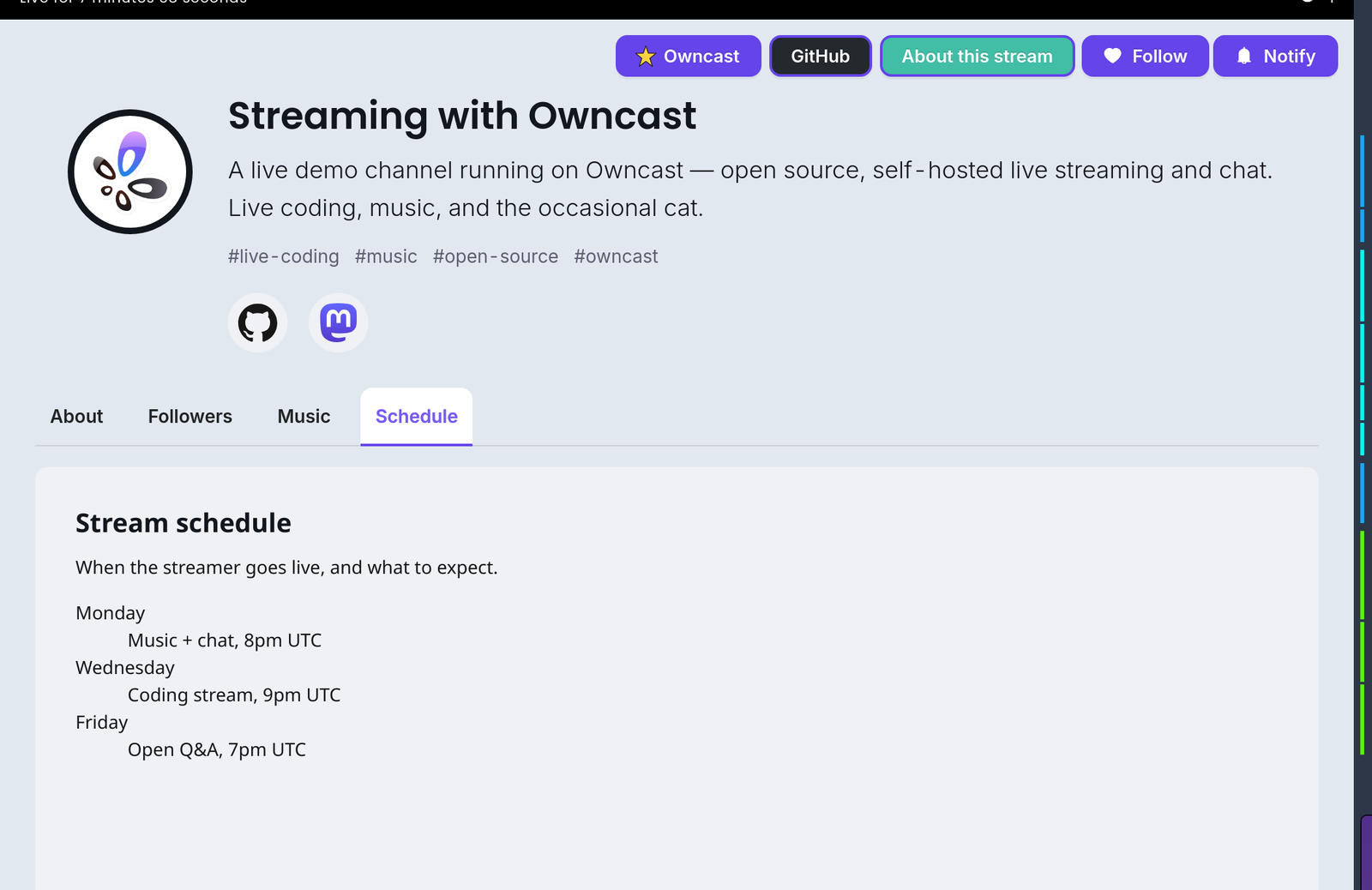
See Styling plugin UI for the baseline and the helper classes. Tabs from each plugin are appended after the built-ins in lexicographic slug order. Ordering between tabs from different plugins is unspecified. JSON object order is not significant. The React key combines the tab slug and title, so changing either value remounts that tab.
The tab object key
The object key is a stable name you control. The host passes it to your tab-content handler as slug, so one handler can serve multiple tabs without guessing which one was requested. It also appears in host logs and future API calls, so pick something clear, like "music" or "stream-info". You can change title freely unless your code depends on it. Changing the key is a breaking change if code depends on the existing slug.
Dynamic tab content
When a tab value has no content file, the host calls your tab-content handler to produce it. Implement it when content should change per viewer or pull live data. The host resolves every dynamic tab while building the viewer's /api/config payload, once per config request rather than on tab click, so keep the handler fast. It passes the tab's object key as slug with the viewer's identity, and expects the HTML string for the tab body:
- JavaScript
- Python
module.exports = definePlugin({
  onTabContent(ctx) {
    // ctx = { slug, user? }
    if (ctx.slug === 'stream-info') {
      return '<h2>Stream info</h2><p>Live every weekday at 8pm UTC.</p>';
    }
    return '';
  },
});
@plugin.on_tab_content("stream-info")
def stream_info(ctx):
    return "<h2>Stream info</h2><p>Live every weekday at 8pm UTC.</p>"
See Handlers: tab content for the payload shape. The viewer identity is present when authenticated and absent for anonymous viewers.
Path rules
Same as extraPageContent, applied per entry:
- Bare paths like
"music.html"auto-prefix to your plugin's namespace. - Fully qualified
/plugins/<your-slug>/...paths pass through. - Paths in another plugin's namespace are rejected.
http(s)://URLs are rejected.- Each entry must end in
.html.
Tab title
The title field shows up verbatim in the tab bar. Keep it short: long titles get truncated by the tab UI. There's no schema constraint on length, but anything past ~16 characters won't fit cleanly on mobile.
When to use tabs vs extraPageContent
extraPageContent: one block of HTML that sits above the tab row. Good for announcement strips, sponsor banners, anything that should always be visible.tabs: dedicated panels the viewer clicks into. Good for content that doesn't need to compete with chat for attention: music lists, event schedules, link pages, sponsor sections you want viewers to find but not necessarily see first.
Improve this page
See something missing or incorrect? Edit this page and improve the documentation for everyone.
 Gabe Kangas
Related Documents
- Configuration via PluginsLet admins configure your plugin with typed settings. Owncast renders the form, you read the values at runtime with owncast.config.get.
- Extend Owncast with pluginsWrite plugins that run sandboxed inside Owncast to react to chat, post to the fediverse, serve HTTP endpoints, and add UI.
- Chat pluginsBuild chat bots, moderation tools, and message filters for Owncast plugins using chat handlers and owncast.chat APIs.
- Testing pluginsDrive your built plugin through the real Owncast runtime with mocked side effects. Scenario tests, assertions, fixtures, HTTP auth.
- Serving HTTP via PluginsServe URLs from your plugin, write dynamic handlers, gate admin endpoints, and push realtime events to browsers.
- PluginsAn overview of Owncast plugins, what they can do for your stream, and how to install one from the admin.