 Owncast now supports custom plugins.
 Choose the Right Video Quality Settings
This document aims to outline what is being done to your content and the different knobs you can tweak to get the best output for your instance.
To see how your specific stream is performing, visit the Stream Health page in the admin.
Overview
- Configure your broadcasting software to send a stream to Owncast that is reasonably close to what you expect to send to your viewers. How you configure your broadcasting software matters. Don't tell OBS to send to Owncast at 7000k at 60fps if you only expect to support bitrates of 4000k and 2000k at 30fps.
- Start with a single output configuration with average settings. Test it. See how your hardware handles it. If you want to, and are able to, then add another and test that. Repeat until you arrive at the configuration you want to offer your viewers and that your hardware can handle.
- If your hardware can't handle your current configuration then reduce the number of output variants to only a single one, reduce the quality of video you're sending to Owncast, reduce your framerate, and reduce the CPU usage
Your stream can be played outside of your web site.
Because Owncast uses the HLS standard, almost any video player can play your stream. You can also build your own app that plays it. Commonly used video player such as Quicktime, VLC, and mpv can play your stream simply by using its base URL as https://owncast.mydomain.com. Alternatively, you can also access your stream directly on your server by putting the path of /hls/stream.m3u8 into your player. For example: https://owncast.mydomain.com/hls/stream.m3u8.
How does an Owncast video stream work?
Owncast takes your source stream and converts it to short, individual video segments. A list of these segments is supplied to your viewer's player and will read and play all the segments in order. This is using a specification called HLS or HTTP Live Streaming. You can optionally generate multiple different qualities of video to allow lower bandwidth options. This is called Adaptive bitrate streaming.
In this case Owncast works as the Media encoder, Stream segmenter, and distribution web server. However Owncast supports video being distributed via 3rd party storage as well, so in that case the video segments would be distributed from there, instead.
Things to keep in mind.
- The more work you need done to convert the video from one size, quality or format to another the more it will slow everything else down.
- The slower things go the slower the stream is provided to the user.
- If stream is provided to the user too slowly they'll start seeing buffering and errors.
Here's what knobs can be tweaked when trying to determine the quality or qualities you want to provide your user while balancing the amount of server resources you're consuming.
Things you can configure
Bitrate
The bitrate is the amount of data you send when you stream. A higher bitrate takes up more available internet bandwidth and create larger sized segments of video, making it take longer for viewers to download. Increasing your bitrate can improve your video quality, but only up to a certain point. You can select bitrates between 400 and 13,000 kbps, in 100 kbps steps.
Resolution
Resolution refers to the size of a video on a screen. Like bitrates you can provide multiple different sizes for different cases, but asking to resize a video amounts to additional work that needs to be performed.
It's recommended if you have to change the size to only change the width or the height, and it'll keep the correct aspect ratio for you. If you change both the width and the height you may be changing the aspect ratio of the video you may end up with a squished picture if you don't set it correctly.
Framerate
Framerate is the number of frames per second in the video. Owncast defaults to 24fps, but other common framerates are 30 or 60. You can select any framerate between 24 and 120. Increasing the framerate will use more CPU on your server, and more bandwidth for your users as more frames of video have to be processed and made available to your viewers any given second.
CPU Usage
The more CPU you use the better the output image will be, or the smaller of a file the output will be for the same quality. However, you will need to balance the amount of CPU you have available with the amount you can use to process video. There are five CPU usage levels to pick from, ranging from lowest to highest.
Latency Buffer
You have some control over the live latency between the broadcaster and the viewer. While it's completely understandable to want to have as little latency as possible you may need to increase the latency buffer if you're experiencing issues. In general the lower the latency the less buffer is available for any possible slow transfers, network blips or errors.
Autoplay
By default viewers press play to start watching. If you would rather the stream start on its own when someone opens your page, change the Autoplay setting on the same Video configuration page. It has no performance impact, and it applies to your Owncast page and to embedded players.
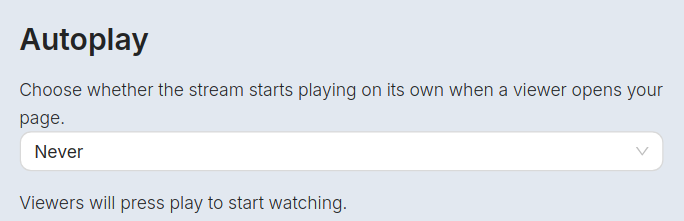
- Never: the player waits for the viewer to press play. This is the default.
- Always: the stream starts the moment the page opens. It plays with sound where the browser allows it and starts muted everywhere else. While the stream plays muted, the player shows a large unmute button over the video so turning on sound is one click.
- Only if sound is available: the stream starts on its own only when the viewer's browser allows sound to play too. It never starts silently. If the browser blocks sound, the viewer presses play as usual.
Every major browser restricts autoplay with sound, based on its own rules, its settings, and often the viewer's history with your site. In practice Always usually starts muted for first-time visitors, and Only if sound is available usually does not autoplay for them at all.
The player also never autoplays, regardless of this setting, for viewers who have data saver enabled or whose system asks for reduced motion (the prefers-reduced-motion accessibility preference).
Video Passthrough

Owncast has an optional setting to turn off re-encoding of your inbound stream, potentially saving substantial hardware utilization and supporting a higher quality stream with less resources. However, because your video will not be re-encoded it’s possible that certain video from certain sources may end up not being playable at all. This is the risk of enabling this.
When passthrough is enabled for a stream output, Owncast copies your inbound video untouched instead of re-encoding it. All the other settings for that output, such as bitrate, resolution, framerate and CPU usage level, are ignored. Because no encoding work happens, passthrough saves nearly all the CPU that output would otherwise use.
The tradeoff is that viewers receive exactly what your broadcasting software sends. If your source uses settings some players or browsers can't handle, the stream can be unplayable for those viewers, and Owncast can't correct it. Long keyframe intervals in your source also increase latency, because Owncast can't optimally segment video it isn't re-encoding. This is why the admin asks you to confirm you understand the risks before enabling it. Test playback on the devices you care about before relying on passthrough.
Audio
What you're sending from your broadcasting software is generally reasonable and additional conversion isn't required, even for low-bandwidth viewers. Owncast will not change the audio stream and instead just pass it along to the end users to save additional work being performed.
How you configure your broadcasting software matters.
You will want to configure your broadcasting software to match the highest quality you can offer your viewers. That means if your Owncast server can only handle 720p@2500k you should not configure your broadcasting software to send 1080p@6000k. The more conversion work you ask Owncast to do the more resources it will use on your server, making it even harder to offer the best qualities to your viewers.
If you find yourself trying to squeeze better performance out of Owncast then try setting your broadcasting software to a lower quality as well as lowering the quality in your Owncast instance.
Read more about configuring your broadcasting software.
Hardware accelerated video encoding
If you are running on physical hardware you may be able to increase the performance of your Owncast instance by using your hardware along with a compatible codec, taking the heavy load off of your CPU. There is no guarantee all hardware configurations, drivers or operating systems will work and it may take some effort on your part to install all of the additional software required to get it working. Read more about what is supported, and how, at our hardware accelerated encoding with additional codecs document.
Resource and requirement examples
Visit the resources and requirements page to see some examples of what you can expect from your server hardware and network connection and how it may affect your viewers.
Improve this page
See something missing or incorrect? Edit this page and improve the documentation for everyone.



Related Documents
- Video quality and performanceHow broadcasting software, video settings, object storage, latency, and metrics combine to shape your stream.
- ConfigurationConfiguration is generally done through the Owncast administration page located on your server under `/admin`, however, there are a number of runtime flags you can set when starting Owncast to modify its behavior.
- Web BrowsersWatch Owncast streams using the built-in web video player
- Embed Owncast Into Your WebsiteYou can easily embed your chat or video into another site.
- Stream performanceIt's important to know if your Owncast stream is performing well. There are a few tools within the admin to assist with this.
- Compatible hardwareVarious pieces of hardware have been tested with Owncast.