 Owncast now supports custom plugins.
Android phones and tablets
Mobile device
androidvlcmpvhlsmobilewatching
VLC for Android
RecommendedUse VLC to play an Owncast stream from its direct HLS URL.
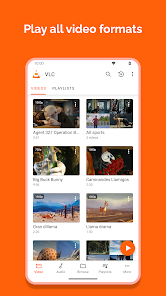
- Free and open source.
- Supports network streams and adaptive streaming.
- Works on Android phones, tablets, and Android TV devices.
Show step-by-step instructions
- Install VLC from Google Play.
- Open the More tab and select Streams.
- Enter your stream URL. The direct HLS form is the most reliable, for example
https://watch.owncast.online/hls/stream.m3u8. - Tap the send arrow next to the field to start playback.
mpv-android
Use mpv-android when you want a lightweight player for a direct Owncast stream URL.
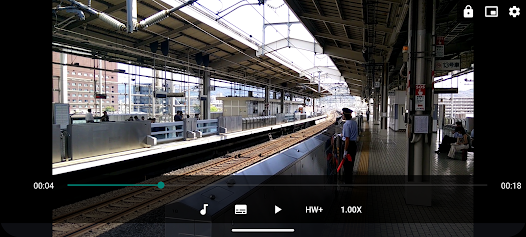
- Open source player based on libmpv.
- Supports network playback, including HLS streams.
- Offers detailed playback and subtitle controls.
Show step-by-step instructions
- Install mpv-android from Google Play.
- On the main screen, tap Open URL.
- Enter your stream URL, for example
https://watch.owncast.online/hls/stream.m3u8. - Tap OK.
Android web browser
The built-in browser can use Owncast's web player without installing another app.
- Open your Owncast server URL in Chrome or another modern Android browser.
- Uses the same web player as desktop viewers.
- Supports chat, stream metadata, and authentication when the server enables them.
Show step-by-step instructions
- Open Chrome or another modern browser on your Android device.
- Navigate to your Owncast server URL, such as
https://watch.owncast.online. - Tap the play button.
Improve this page
See something missing or incorrect? Edit this page and improve the documentation for everyone.
Contributors to this documentation

Related Documents
- Google TVWatch Owncast streams on Google TV using VLC or other compatible Android TV apps.
- Amazon Fire TVWatch Owncast streams on Amazon Fire TV using VLC or other compatible apps.
- Web BrowsersWatch Owncast streams using the built-in web video player
- iPhone & iPadWatch Owncast streams on iPhone and iPad using the native Owncasts app, Safari browser, or AirPlay to other devices.
- Watching on TVs and DevicesOverview of all supported devices and platforms for watching Owncast streams on televisions and streaming devices.
- Samsung Smart TVsLimited options for watching Owncast streams on Samsung Smart TVs due to platform restrictions.