 Owncast now supports custom plugins.
Apple TV
Streaming device
airplayofficial-appappletvtvosiosipadosmacostelevisionwatching
Owncasts for tvOS
RecommendedUse the native Owncasts for tvOS app to browse the Owncast directory or connect directly to your own server.

- Best experience if you primarily watch Owncast streams.
- Simple interface with directory browsing built in.
- No casting or mirroring required.

Show step-by-step instructions
- Open the App Store on your Apple TV.
- Search for Owncasts and install the app.
- Launch Owncasts for tvOS.
- Browse the directory or add your Owncast server URL in settings.
- Select a stream and start watching.
VLC for tvOS
Use VLC to open your Owncast URL directly as a network stream.
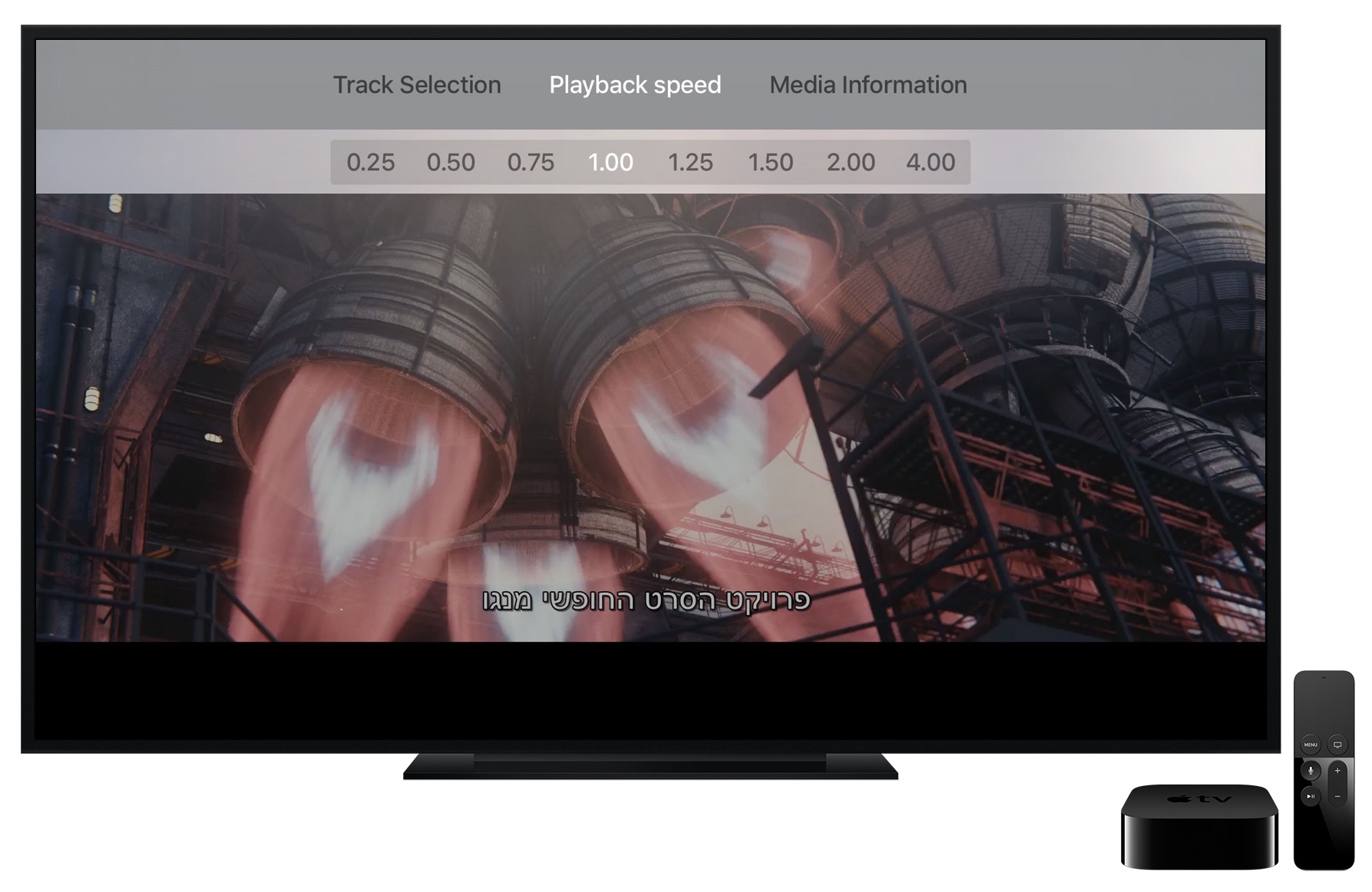
- Good if you already use VLC on other devices.
- Works with the main Owncast page URL or direct HLS URL.
Show step-by-step instructions
- Install VLC from the tvOS App Store.
- Open VLC and navigate to Network Stream.
- Type your Owncast URL into the Enter URL to play field. The direct HLS form is the most reliable, for example
https://watch.yourserver.tld/hls/stream.m3u8. - Submit the field to start playback. VLC keeps recent stream URLs on this screen so you can pick the stream again later.
AirPlay from iPhone or iPad
Play the Owncast stream on your iPhone/iPad and AirPlay to your Apple TV.
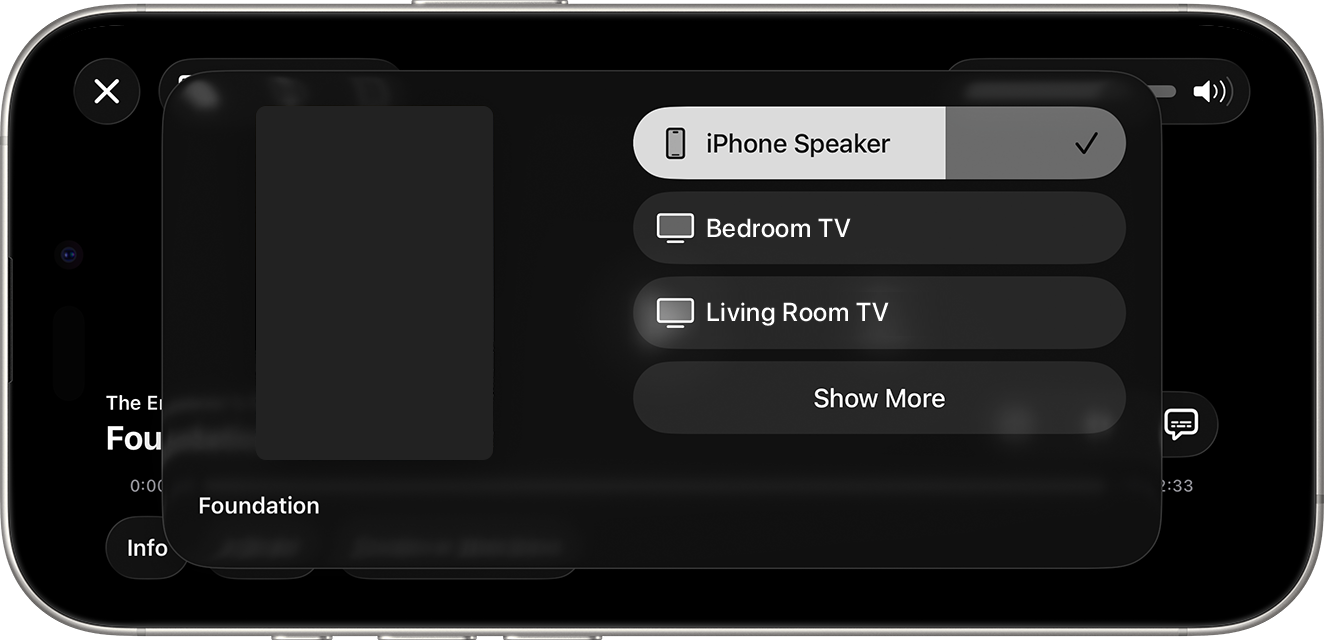
- Great if you primarily watch on your phone but want to send it to TV occasionally.
- No extra tvOS apps required.
Show step-by-step instructions
- Open the Owncast stream in a browser on iOS or iPadOS. Alternatively open using the Owncasts iOS app.
- Start playback.
- Open Control Center and tap the AirPlay icon.
- Select your Apple TV.
AirPlay from Mac
Play the Owncast stream on your Mac and mirror or AirPlay the video to Apple TV.
- Good if you want to use your laptop to stream to your AppleTV.
- Works from Safari or screen sharing from macOS.
Show step-by-step instructions
- Open the Owncast stream in Safari on your Mac.
- Start playback.
- Use the Screen Mirroring / AirPlay icon in the menu bar, or in the video player if available.
- Select your Apple TV.
iPlayTV for tvOS
Use iPlayTV to browse the Owncast directory via IPTV playlist on your Apple TV.

- Browse the entire Owncast directory directly on your TV.
- IPTV playlist support for directory integration.
- Reload the playlist to pick up the streams that are live now.
Show step-by-step instructions
- Install iPlayTV from the tvOS App Store.
- Open iPlayTV and choose Add Playlist.
- Choose the remote M3U link option and enter the directory playlist URL:
https://owncast.directory/api/iptv - Give the playlist a name and save it.
- Open the playlist and browse the available Owncast streams.
Improve this page
See something missing or incorrect? Edit this page and improve the documentation for everyone.
Contributors to this documentation

Related Documents
- iPhone & iPadWatch Owncast streams on iPhone and iPad using the native Owncasts app, Safari browser, or AirPlay to other devices.
- RokuWatch Owncast streams on Roku using AirPlay or the official Owncasts app.
- Watching on TVs and DevicesOverview of all supported devices and platforms for watching Owncast streams on televisions and streaming devices.
- Google TVWatch Owncast streams on Google TV using VLC or other compatible Android TV apps.
- Amazon Fire TVWatch Owncast streams on Amazon Fire TV using VLC or other compatible apps.
- KodiWatch Owncast streams on Kodi using the official Owncast plugin for directory browsing.