 Owncast now supports custom plugins.
iPhone & iPad
Other device
iphoneipadiosipadosofficial-appsafarimobileairplaywatching
Owncasts for iOS
RecommendedUse the native Owncasts app to browse the directory or connect directly to your own server.

- Best experience for watching Owncast streams on mobile.
- Directory browsing built in.
- Picture-in-picture support for multitasking.
- AirPlay integration for casting to TV.
Show step-by-step instructions
- Install Owncasts for iOS from the App Store.
- Launch the application and browse the directory or add your own Owncast server in settings.
- Select a stream to start watching.
- Use the AirPlay button to cast to compatible devices like Apple TV or AirPlay-enabled TVs.

Safari Browser
Watch Owncast streams directly in Safari with full-screen and AirPlay support.

- No app installation required.
- Works with any Owncast server.
- Built-in AirPlay controls in video player.
- Picture-in-picture support on supported devices.
Show step-by-step instructions
- Open Safari on your iPhone or iPad.
- Navigate to your Owncast server URL (e.g.,
https://watch.owncast.online). - Tap the play button to start the stream.
- Use the AirPlay button in the video controls to cast to other devices.
- Tap the full-screen button for immersive viewing.
VLC for iOS
Use VLC to play Owncast streams with advanced playback controls and options.

- Advanced media player with extensive format support.
- Network stream support for direct URL input.
- Offline playback capabilities.
- Built-in AirPlay support.
Show step-by-step instructions
- Install VLC for iOS from the App Store.
- Open VLC and select the Browse tab.
- Select Open Network Stream.
- Enter your Owncast URL. The direct HLS form is the most reliable, for example
https://watch.owncast.online/hls/stream.m3u8. - Tap the Open arrow to start playback.
- Use AirPlay button to cast to other devices if desired.
AirPlay to TV
Stream from your iPhone or iPad to Apple TV, AirPlay-compatible TVs, or other AirPlay receivers.
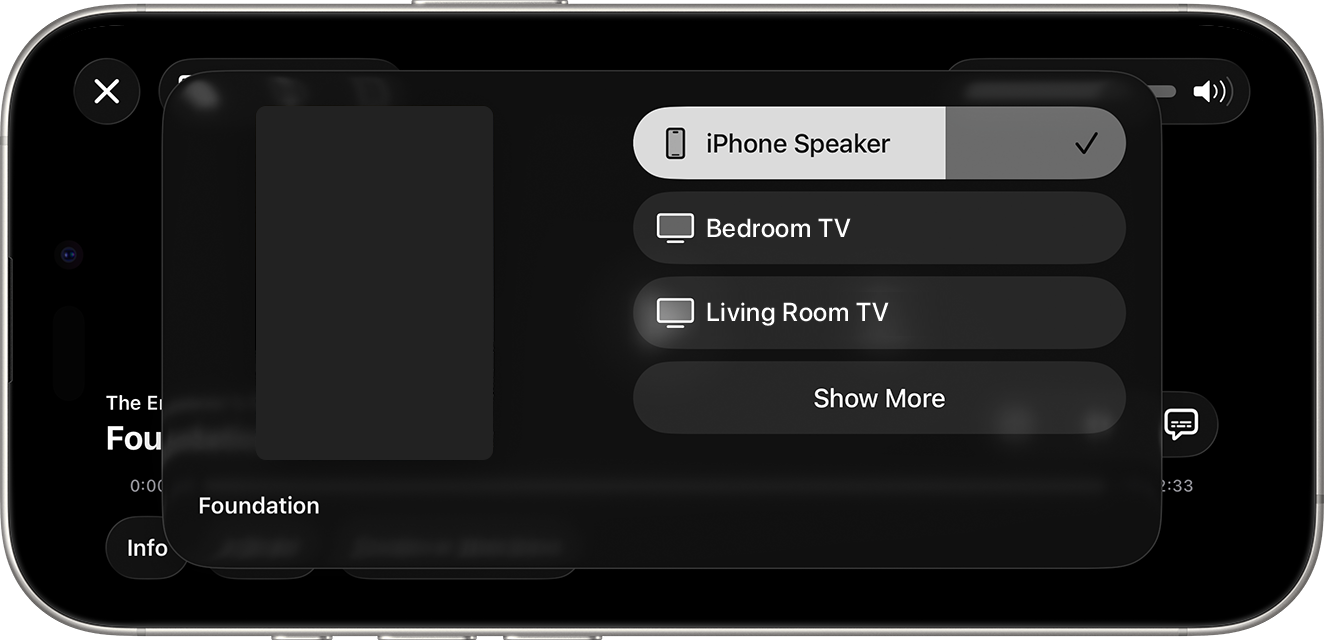
- Works from both the Owncasts app and Safari.
- High-quality video streaming to large screens.
- Control playback from your mobile device.
- Continue using your phone while streaming.
Show step-by-step instructions
- Start playing an Owncast stream on your iPhone or iPad (using either the Owncasts app or Safari).
- Look for the AirPlay button in the video controls or app interface.
- Tap the AirPlay button and select your target device (Apple TV, smart TV, etc.).
- The stream will begin playing on the selected device.
- Use your iPhone/iPad as a remote control.
For more details, visit Apple's AirPlay documentation.
Control Center AirPlay
Use Control Center to quickly AirPlay any Owncast stream to compatible devices.

- System-wide AirPlay access from Control Center.
- Works with any app or browser playing Owncast streams.
- Quick device switching.
Show step-by-step instructions
- Start playing an Owncast stream in any app or Safari.
- Open Control Center (swipe down from top-right on newer iPhones, swipe up from bottom on older models).
- Tap the AirPlay icon (rectangle with triangle).
- Select your AirPlay-compatible device from the list.
- The audio and video will stream to the selected device.
Improve this page
See something missing or incorrect? Edit this page and improve the documentation for everyone.
Contributors to this documentation

Related Documents
- Apple TVApple TV works best with Owncasts for tvOS, VLC, or AirPlay from iOS/macOS.
- RokuWatch Owncast streams on Roku using AirPlay or the official Owncasts app.
- Watching on TVs and DevicesOverview of all supported devices and platforms for watching Owncast streams on televisions and streaming devices.
- Android phones and tabletsWatch Owncast streams on Android phones and tablets with VLC, mpv-android, or the built-in web player.
- Web BrowsersWatch Owncast streams using the built-in web video player
- LG Smart TVs (WebOS)Watch Owncast streams on LG WebOS TVs using an IPTV playlist app or the built-in browser.